> ## Documentation Index
> Fetch the complete documentation index at: https://docs.1eye.ai/llms.txt
> Use this file to discover all available pages before exploring further.
# Slack
> Connect Slack as a Destination and push buyer and company activity from your target lists to a channel your team already watches.
Push buyer and company activity from your target lists into a Slack channel, so your team sees activity where they already work.
### Before you begin
* Admin or app-installation permissions in the Slack workspace you're connecting
* At least one Target List with contacts or companies in it
* Admin or Marketer access to your 1eyeᴬᴵ workspace
For this guide, we'll use Snowbricks as the example workspace.
| Field | Example |
| --------------- | ----------------------------------------------- |
| Company | Snowbricks |
| Slack workspace | Snowbricks |
| Workspace admin | Matt Bru |
| Admin email | [matt@snowbricks.io](mailto:matt@snowbricks.io) |
### Connect Slack
Connecting Slack happens inside a destination workflow, at the Destination node.
**Step 1: Open the Destination node**
 If Slack isn't connected yet, the node shows:
> Slack · Not Connected \[Connect]
Select Connect.
**Step 2: Confirm the connection in 1eyeᴬᴵ**
If Slack isn't connected yet, the node shows:
> Slack · Not Connected \[Connect]
Select Connect.
**Step 2: Confirm the connection in 1eyeᴬᴵ**
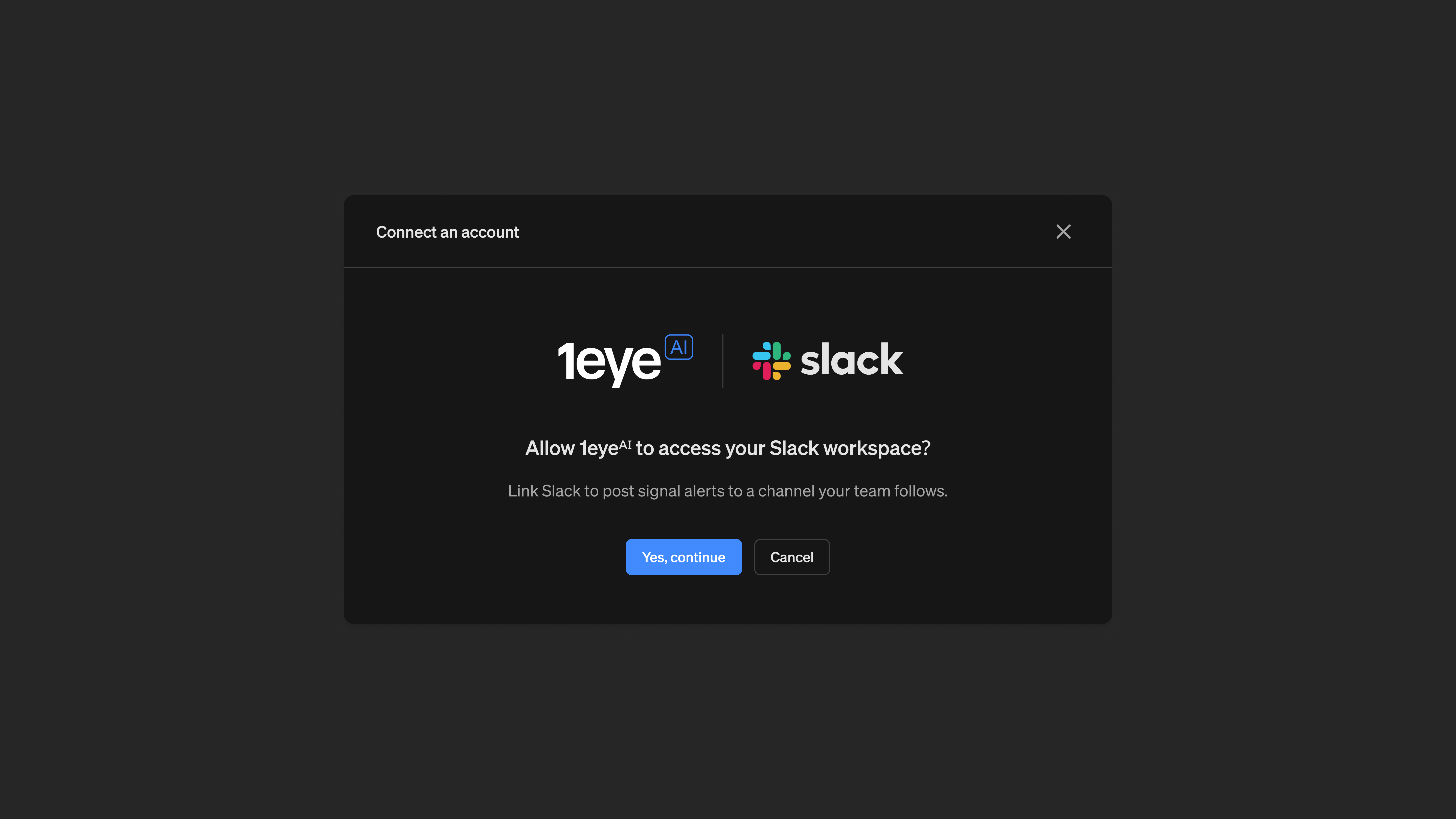 > Allow 1eyeᴬᴵ to access your Slack workspace? Link Slack to post signal alerts to a channel your team follows.
Select Yes, continue.
**Step 3: Continue to Slack**
Opens a Slack-hosted authorization screen in a new window. Select Log In if you already have an account.
**Step 4: Log in to Slack**
Enter your Slack credentials, or continue with SSO, then select Log In. This is Slack's own secure login screen — your credentials are entered directly with Slack and never seen by 1eyeᴬᴵ.
**Step 5: Choose your Slack workspace, if prompted**
If you have access to more than one Slack workspace, choose the one that matches your 1eyeᴬᴵ workspace.
**Step 6: Review and allow access**
> Allow 1eyeᴬᴵ to access your Slack workspace? Link Slack to post signal alerts to a channel your team follows.
Select Yes, continue.
**Step 3: Continue to Slack**
Opens a Slack-hosted authorization screen in a new window. Select Log In if you already have an account.
**Step 4: Log in to Slack**
Enter your Slack credentials, or continue with SSO, then select Log In. This is Slack's own secure login screen — your credentials are entered directly with Slack and never seen by 1eyeᴬᴵ.
**Step 5: Choose your Slack workspace, if prompted**
If you have access to more than one Slack workspace, choose the one that matches your 1eyeᴬᴵ workspace.
**Step 6: Review and allow access**
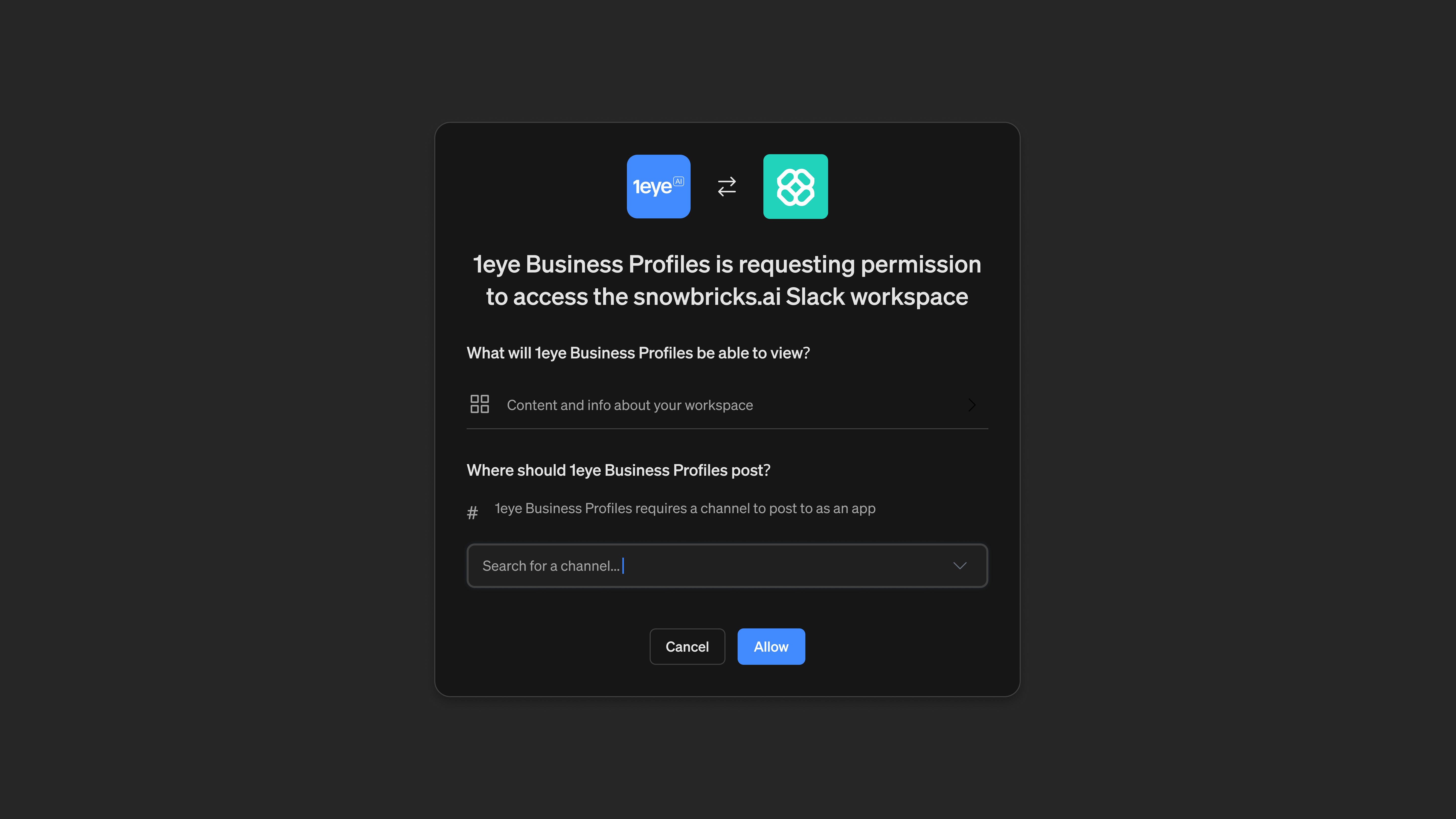 Review the permissions screen, then select Allow.
**Step 7: Connection confirmed**
Review the permissions screen, then select Allow.
**Step 7: Connection confirmed**
 The Destination node updates from Not Connected to Connected, and channel and push behavior options appear.
### Configure the destination
**Channel**
Select the Slack channel to post to. Only one channel can be selected per Destination node.
| Field | Example |
| ------- | ---------- |
| Channel | #1eye-prod |
**Push behavior**
Choose when 1eyeᴬᴵ should post to the channel:
| Option | Description |
| -------------- | ----------------------------------- |
| Once per Buyer | Push when first identified. |
| New Signal | Push when a new signal is received. |
| Every Signal | Push for every new signal. |
Select Save Destination once your channel and push behavior are set.
### Monitor pushed records
From the Console, filter Slack pushes by All / Pushed / Pending / Failed. Select a contact to see the exact message posted to Slack.
### Disconnect Slack
* Open the workflow and select the Destination node
* Select the menu next to the Connected status
* Select Disconnect
Disconnecting stops any workflows using Slack as a destination until you reconnect. Messages already posted to Slack remain there.
### Best practices
**Connect with an account that has the right permissions** Use a Slack login with admin or app-installation rights, so the connection doesn't get blocked by a permissions gap.
**Pick a channel your team actually watches** A destination only helps if the right people see it — choose a channel your GTM team is already in.
**Match push behavior to channel volume** Use Once per Buyer for a low-noise channel, or Every Signal for a channel dedicated to real-time activity.
**Re-authenticate if the connection breaks** If Slack revokes access (workspace changes, admin policy, expired token), reconnect from the Destination node.
### Troubleshooting
| Issue | What to check |
| ------------------------------------------ | ----------------------------------------------------------------------------------------- |
| Connect button doesn't open a login window | Your browser isn't blocking pop-ups for 1eye.app. |
| Wrong Slack workspace connected | Disconnect, then reconnect and choose the correct workspace when prompted. |
| No messages appearing in the channel | Confirm the channel is selected and the 1eyeᴬᴵ app hasn't been removed from that channel. |
| Push behavior isn't matching expectations | Confirm the correct Push behavior option is selected and saved. |
### FAQ
No. Slack login happens on Slack's own hosted page. 1eyeᴬᴵ never sees your username or password — only the access token Slack issues after you approve the connection.
Workflows using Slack as a destination stop posting until you reconnect. Messages already posted to Slack remain there.
Each Destination node posts to a single channel. To post to multiple channels, add a separate Destination node for each one.
### Next step
Go to [Destinations](/destinations/destination) to build your first Slack workflow.
The Destination node updates from Not Connected to Connected, and channel and push behavior options appear.
### Configure the destination
**Channel**
Select the Slack channel to post to. Only one channel can be selected per Destination node.
| Field | Example |
| ------- | ---------- |
| Channel | #1eye-prod |
**Push behavior**
Choose when 1eyeᴬᴵ should post to the channel:
| Option | Description |
| -------------- | ----------------------------------- |
| Once per Buyer | Push when first identified. |
| New Signal | Push when a new signal is received. |
| Every Signal | Push for every new signal. |
Select Save Destination once your channel and push behavior are set.
### Monitor pushed records
From the Console, filter Slack pushes by All / Pushed / Pending / Failed. Select a contact to see the exact message posted to Slack.
### Disconnect Slack
* Open the workflow and select the Destination node
* Select the menu next to the Connected status
* Select Disconnect
Disconnecting stops any workflows using Slack as a destination until you reconnect. Messages already posted to Slack remain there.
### Best practices
**Connect with an account that has the right permissions** Use a Slack login with admin or app-installation rights, so the connection doesn't get blocked by a permissions gap.
**Pick a channel your team actually watches** A destination only helps if the right people see it — choose a channel your GTM team is already in.
**Match push behavior to channel volume** Use Once per Buyer for a low-noise channel, or Every Signal for a channel dedicated to real-time activity.
**Re-authenticate if the connection breaks** If Slack revokes access (workspace changes, admin policy, expired token), reconnect from the Destination node.
### Troubleshooting
| Issue | What to check |
| ------------------------------------------ | ----------------------------------------------------------------------------------------- |
| Connect button doesn't open a login window | Your browser isn't blocking pop-ups for 1eye.app. |
| Wrong Slack workspace connected | Disconnect, then reconnect and choose the correct workspace when prompted. |
| No messages appearing in the channel | Confirm the channel is selected and the 1eyeᴬᴵ app hasn't been removed from that channel. |
| Push behavior isn't matching expectations | Confirm the correct Push behavior option is selected and saved. |
### FAQ
No. Slack login happens on Slack's own hosted page. 1eyeᴬᴵ never sees your username or password — only the access token Slack issues after you approve the connection.
Workflows using Slack as a destination stop posting until you reconnect. Messages already posted to Slack remain there.
Each Destination node posts to a single channel. To post to multiple channels, add a separate Destination node for each one.
### Next step
Go to [Destinations](/destinations/destination) to build your first Slack workflow.