> ## Documentation Index
> Fetch the complete documentation index at: https://docs.1eye.ai/llms.txt
> Use this file to discover all available pages before exploring further.
# Credits
> Understand how credits work in 1eyeᴬᴵ, how plans and pricing work, how to buy and manage credits, and how to monitor usage.
Credits are the usage currency inside 1eyeᴬᴵ. They are used when 1eyeᴬᴵ identifies a qualified buyer from your target lists, or captures a buyer signal from a connected source.
## Credit details
1eyeᴬᴵ uses two credit types.
| Type | Action | Credits |
| --------------- | ------------------------------------------------------------------------------------------------- | ------- |
| Qualified Buyer | A buyer or company is identified as a qualified buyer | 10 |
| Buyer Signal | 1eyeᴬᴵ captures a buyer signal (website activity, LinkedIn activity, or other tracked engagement) | 1 |
Credits help your team use 1eyeᴬᴵ flexibly across the full GTM workflow, from signal capture to buyer identification to activation through Destinations.
## Before you begin
To review credits, you need:
* Access to your 1eyeᴬᴵ workspace
* An active plan
* Admin access if you want to manage plan or billing
* A basic understanding of how your team uses signals and target lists
For this guide, we'll use Snowbricks as the example workspace.
| Field | Example |
| --------------- | ----------------------------------------------- |
| Company | Snowbricks |
| Domain | snowbricks.io |
| Workspace admin | Matt Bru |
| Admin email | [matt@snowbricks.io](mailto:matt@snowbricks.io) |
## Plans and pricing
1eyeᴬᴵ offers three plans.
| Plan | Price | Billing | Best for |
| ----------- | ------------- | ----------------------- | -------------------------------------------------------------------------------------------------- |
| Free | \$0 | – | 500 credits included at signup — enough to try out 50 qualified buyers or 500 buyer signals |
| Prepaid | \$0.05/credit | Prepaid (pay-as-you-go) | Buy credits when you need them, or turn on Auto-reload to keep 1eyeᴬᴵ running without interruption |
| High Volume | Custom | Prepaid or postpaid | Volume pricing tiers, flexible models, and custom invoicing for teams running 1eyeᴬᴵ at scale |
### Credit costs by plan
| | Free | Prepaid | High Volume |
| --------------- | -------------------------- | -------------------- | -------------- |
| Cost | \$0 (500 credits included) | \$0.05/credit | Volume pricing |
| Qualified Buyer | 50 included | 10 credits per buyer | Custom |
| Buyer Signal | 500 included | 1 credit per signal | Custom |
### What's included
Every plan includes the core 1eyeᴬᴵ product: Website Signals, Market Signals, Social Signals, Identity Resolution, Enrichment, Fit Evaluation, ICP & Persona Matching, Knowledge Base, verified business email and mobile number, Target Lists, Destinations, Webhooks, and Usage Analytics.
Prepaid and High Volume plans also include:
* Role-based access
* APIs and MCP
* Data export
* Higher user limits — 25 users on Prepaid, unlimited on High Volume, compared to 5 on Free
* Chat & email support on Prepaid, or chat, email & Slack support on High Volume
High Volume plans also include a Master Services Agreement (MSA).
## Buying credits
On the Free plan, your 500 signup credits are included at no cost. On Prepaid and High Volume plans, you buy credits as you need them.
### Where to buy credits
1. Open your 1eyeᴬᴵ workspace.
2. In the left sidebar, find your plan card (for example, **Prepaid Plan**).
3. Select **Manage**, or select **Buy Credits** wherever it appears in the product — for example, from a signals table when your balance is low.
### The Buy Credits dialog
The Buy Credits dialog shows:
* Your current credit balance
* Amount options — \$50 (1,000 credits), \$100 (2,000 credits), \$200 (4,000 credits, marked **Popular**), or **Other** to enter a custom amount
* An **Auto-reload** toggle
* Your saved payment method, or a card entry form if you don't have one saved yet (Full Name, Card number, Expiration date, Security code, Zip code)
* An order summary showing credits, tax, and total due
* A **Buy Credits** button to complete the purchase
Selecting **Buy Credits** charges your payment method for the total due and adds the purchased credits to your balance right away.
### Auto-reload
Turn on **Auto-reload** in the Buy Credits dialog to automatically repurchase your selected credit package whenever your balance runs low, so signal capture and buyer identification don't get interrupted. Auto-reload charges your saved payment method for the amount you selected.
### Payment methods
1eyeᴬᴵ charges credit purchases to a card on file.
* **Add or change your card** — In the Buy Credits dialog, select the edit icon next to your saved card, or open **Update Payment Method**.
* **Update Payment Method fields** — Card type, Full Name, Card number, Expiration date, Security code, Zip code.
* Select **Update** to save the new card, or **Cancel** to keep your existing one.
### When credits run out
If your balance reaches 0 credits, credit-consuming actions pause until you add more. 1eyeᴬᴵ prompts you to buy credits with the same Buy Credits dialog described above — your current balance shows as **0 Credits** until you complete a purchase.
To avoid running out unexpectedly, turn on Auto-reload so 1eyeᴬᴵ buys more credits automatically before your balance hits zero.
## Where to find credit usage
You can review credit usage from your workspace sidebar or from the Usage page.
* **From the sidebar** — Open your 1eyeᴬᴵ workspace, find the plan card in the left sidebar, review credits available, and select **Manage** to buy credits or update billing.
 * **From the sidebar nav** — Select **Usage** to open the detailed usage page.
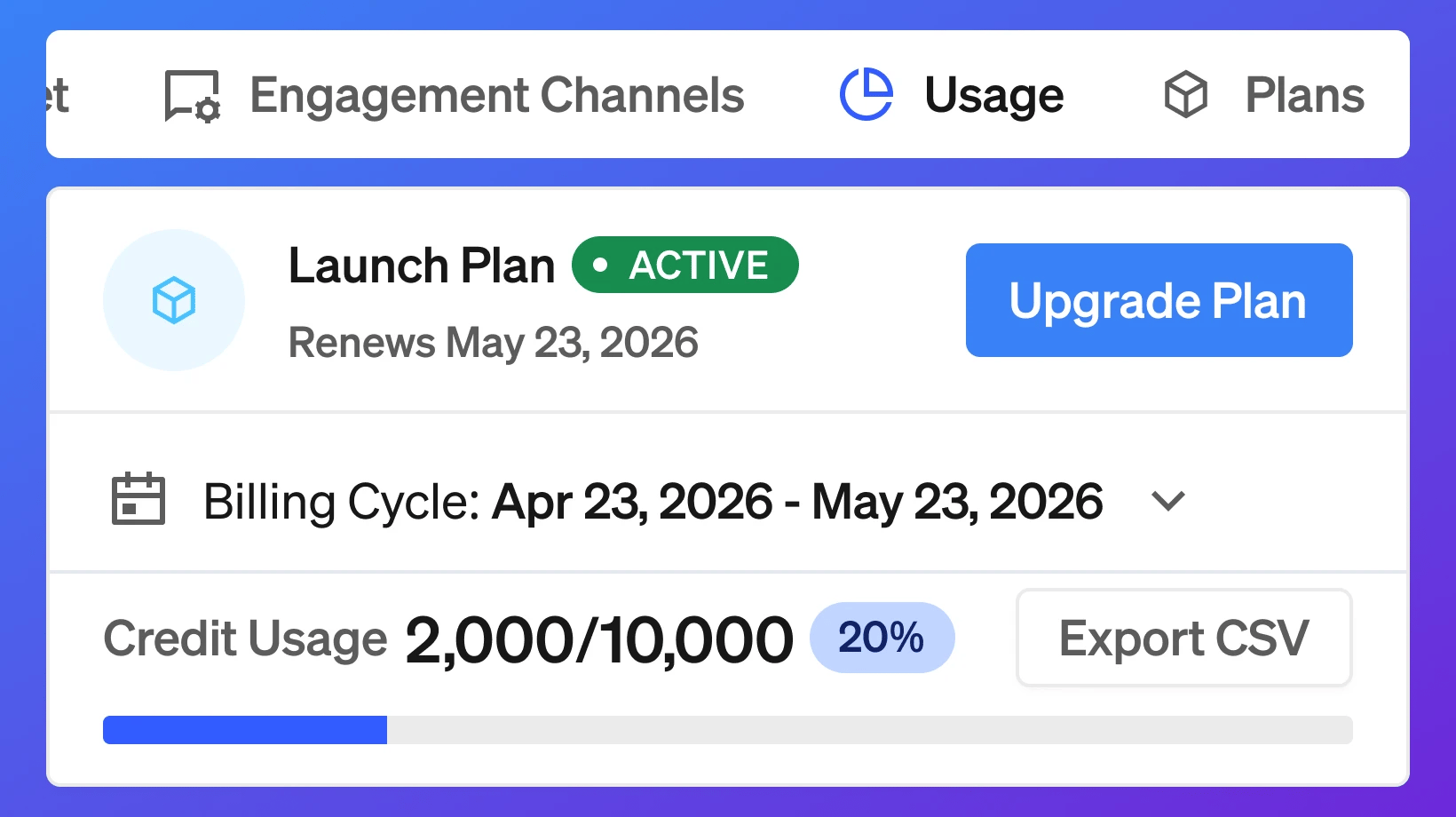 The Usage page is the best place to see the full detail behind your credit usage.
## Usage page
For the most detailed credit breakdown, go to **Usage** in the left sidebar. The Usage page shows:
* A billing-period selector (for example, **July 2026**), with refresh and export controls
* Three summary cards:
* **Credits** — total credits used in the selected period
* **Buyers** — qualified buyers identified, at 10 credits per identified buyer
* **Signals** — buyer signals captured, at 1 credit per buyer signal
* A **Credit usage** chart showing credits consumed per day. Hover any bar to see that day's total credits, buyers identified, and signals identified.
* Your plan card in the sidebar, showing plan status (for example, **Prepaid Plan · Active**) and credits available, with a **Manage** link to buy more credits.
For Snowbricks in July 2026, the Usage page shows:
| Card | Value | Detail |
| ------- | ------ | ------------------------------- |
| Credits | 15,000 | Credits used |
| Buyers | 500 | 10 credits per identified buyer |
| Signals | 10,000 | 1 credit per buyer signal |
Use the period selector to review usage for a specific month. Use the export control when you want to download usage details for reporting, finance, RevOps, or internal review.
## Usage period
Credit usage is reported by calendar month. The period selector (for example, **July 2026**) shows the usage for that month; use the arrows next to it to move to a previous or later period.
Free plan credits are a one-time grant at signup and don't reset monthly. Prepaid and High Volume credits are a running balance you top up — they don't expire and don't reset at the start of a new month.
## Export usage
Select the export control on the Usage page to download your usage data as a CSV. Use the export when you want to: share usage with finance, review credit usage with RevOps, analyze usage by month, track which actions consume the most credits, compare usage before and after changes to your targeting, or understand whether your current plan matches your GTM volume.
Before exporting, confirm you are viewing the correct period.
## What credits are used for
Credits are used for two things: identifying qualified buyers, and capturing buyer signals. This means credits are used when 1eyeᴬᴵ helps you understand activity from your target companies and contacts, and when it identifies a target as a qualified buyer.
## How credits fit into the GTM workflow
Credits support the full 1eyeᴬᴵ workflow.
* **Capture signals** — 1eyeᴬᴵ captures activity from your website, in-market signals, and social channels like LinkedIn. Each buyer signal captured uses 1 credit.
* **Identify qualified buyers** — 1eyeᴬᴵ evaluates companies and contacts against your ICPs and personas, and identifies qualified buyers. Each qualified buyer identified uses 10 credits.
* **Activate targets** — Qualified buyers and their signals flow into Target Lists and out to your connected Destinations, at no additional credit cost.
## How ICP and persona matching affects credit value
Credits are most valuable when your Knowledge Base is accurate. When a signal comes in, 1eyeᴬᴵ evaluates the company against your ICPs and the contact against your personas before counting it as a qualified buyer. This helps your team focus credits on the companies and contacts that matter most.
A strong Knowledge Base improves credit efficiency because 1eyeᴬᴵ can better decide: which companies are worth prioritizing; which contacts are worth identifying as qualified buyers; which targets should be added to lists; which signals deserve attention.
## Example credit usage
Here is a simple example for Snowbricks on the Prepaid plan, for July 2026:
| Action | Count | Credits per action | Total credits |
| -------------------------- | ------ | ------------------ | ------------- |
| Qualified Buyer identified | 500 | 10 | 5,000 |
| Buyer Signal captured | 10,000 | 1 | 10,000 |
| **Total** | | | **15,000** |
The Usage page shows this same breakdown on the Credit usage chart, with a per-day view — for example, July 20, 2026 shows 5,890 credits used that day, from 173 buyers identified and 299 signals identified.
## What does not automatically use credits
Not every action in the product uses credits. For example, credits are not used just for: opening a page in the app; viewing an existing buyer; reviewing a target list; editing your Knowledge Base; inviting a user; updating workspace settings; viewing usage; exporting usage; or updating your payment method.
Credits are tied to usage actions: identifying qualified buyers and capturing buyer signals.
## How to monitor credit usage
Use the Usage page to understand where credits are going. Review: total credits used; remaining credits; current period; qualified buyers identified; buyer signals captured; usage over time.
If credits are being used faster than expected, review your signal volume, target list quality, and whether Auto-reload is turned on.
## What happens when credits run low
When your workspace is running low on credits, your team should review usage and decide whether to buy more credits or adjust activity. You may want to: review which sources are producing the most buyer signals; tighten ICPs and personas so fewer low-fit contacts count as qualified buyers; add exclusions; turn on Auto-reload so you don't run out unexpectedly; or upgrade from Prepaid to a High Volume plan if your team needs volume pricing.
If your balance reaches 0 credits, credit-consuming actions pause until you buy more credits — see [When credits run out](#when-credits-run-out) above.
## How to make credits go further
The best way to make credits go further is to improve targeting.
* **Keep your ICPs specific** — Broad ICPs create noisy company matches and more qualified buyers than you actually want.
* **Keep personas sharp** — Clear personas help 1eyeᴬᴵ prioritize the right buyers.
* **Use exclusions** — Exclude your own company, customers, competitors, vendors, partners, and companies you do not want to target.
* **Track the right website pages** — Install Vision on important GTM pages like homepage, pricing, product, demo, contact, and landing pages.
* **Exclude low-value URLs** — Exclude pages like privacy, terms, login, admin, and internal pages when they are not useful for GTM.
* **Build lists from ICP and persona match** — Source companies from ICPs and contacts from personas instead of creating broad lists.
* **Prioritize high-intent signals** — Focus on companies and contacts visiting pricing, demo, contact, product, comparison, and case study pages.
* **Turn on Auto-reload thoughtfully** — Auto-reload avoids interruptions, but review usage regularly so it doesn't mask a targeting problem that's driving unnecessary spend.
## Plan selection guide
Use this as a simple guide.
* **Free** — Use Free if you are exploring 1eyeᴬᴵ and want to understand how signals and buyer identification work before paying. Best for: testing the workspace, installing Vision, reviewing early signals, understanding credit usage.
* **Prepaid** — Use Prepaid if your team wants to pay only for the credits you use, with the flexibility to buy more anytime or turn on Auto-reload. Best for: most GTM teams, unpredictable or growing signal volume, teams that want simple pay-as-you-go pricing.
* **High Volume** — Use High Volume if your team needs volume pricing, custom invoicing, or prepaid/postpaid flexibility at scale. Best for: larger GTM teams, high signal volume, teams that need an MSA.
## Best practices
* **Start with a clean Knowledge Base** — Credits work better when 1eyeᴬᴵ has accurate ICPs, personas, and exclusions.
* **Review usage by period** — Check usage for the current month and compare it across previous months as your GTM motion grows.
* **Export usage when reviewing spend** — Use the Usage page's export control when you need to share credit usage with finance, RevOps, or leadership.
* **Prioritize high-fit companies and contacts** — Use ICP and persona match to focus which signals become qualified buyers.
* **Keep exclusions updated** — Add customers, competitors, vendors, partners, and poor-fit companies to avoid wasting credits.
* **Use target lists before Destinations** — Build focused target lists before pushing to Destinations.
* **Turn on Auto-reload if volume is steady** — Avoid interruptions once your team is consistently using credits on high-fit signals.
* **Watch for noisy sources** — If one page or segment creates low-quality volume, refine your tracking or targeting.
* **Move to High Volume when it makes sense** — If your team is consistently buying credits at scale, talk to us about volume pricing.
## Troubleshooting
* **Credits are being used faster than expected** — Check buyer signal volume, qualified buyer volume, broad ICPs or personas, and missing exclusions.
* **Signals are noisy** — Review your Knowledge Base. Tighten ICPs, personas, exclusions, included domains, and excluded URLs.
* **Too many poor-fit companies or contacts are being identified as qualified buyers** — Update ICPs, personas, and exclusions. Check whether your ICPs are too broad or whether excluded companies are missing.
* **My balance ran out unexpectedly** — Check whether Auto-reload is turned on and whether your saved payment method is up to date.
* **A credit purchase failed** — Check your card details in Update Payment Method, and confirm the card hasn't expired.
* **No credits are being used** — This may happen if Vision is not installed, no signals are flowing, no buyers are being identified, your workspace is not active, or your plan has run out of credits. Check remaining credits, plan status, and user role.
* **Usage does not look right** — Check you are viewing the correct period, the workspace has recent activity, and the user reviewing usage has the right workspace access. If needed, export the usage CSV and review the rows in detail.
## FAQ
Credits are the usage currency inside 1eyeᴬᴵ. They're used when 1eyeᴬᴵ identifies a qualified buyer (10 credits) or captures a buyer signal (1 credit).
Open the plan card in the left sidebar for a quick view, or go to Usage for the full breakdown.
Your current period's credits used, buyers identified, signals captured, a daily credit usage chart, and your plan's available credits.
Yes. Use the export control on the Usage page to download a CSV.
Yes. Use the period selector at the top of the Usage page to move between months.
Two actions use credits: a qualified buyer being identified (10 credits), and a buyer signal being captured (1 credit).
Free includes 500 credits at signup. Prepaid and High Volume don't include a fixed monthly allowance — you buy credits at \$0.05/credit on Prepaid, or at volume pricing on High Volume.
Open the Buy Credits dialog from your plan card or from a low-balance prompt, choose an amount, confirm your payment method, and select Buy Credits.
Auto-reload automatically repurchases your selected credit package when your balance runs low, so signal capture and buyer identification don't get interrupted.
Open Update Payment Method from the Buy Credits dialog and enter your new card details, then select Update.
Credit-consuming actions pause until you buy more credits. 1eyeᴬᴵ shows the Buy Credits dialog with your balance at 0 Credits until you complete a purchase.
Yes. Tighten your ICPs and personas, add exclusions, and focus tracking on high-intent pages so fewer low-fit signals turn into qualified buyers.
Start on Free to explore. Move to Prepaid for pay-as-you-go pricing once you're actively running signals and identifying buyers. Move to High Volume once your team needs volume pricing or an MSA.
## Next step
After reviewing Credits, go to [Signals Overview](/signals/overview) to understand how 1eyeᴬᴵ captures, evaluates, and organizes activity from target companies and buyers.
The Usage page is the best place to see the full detail behind your credit usage.
## Usage page
For the most detailed credit breakdown, go to **Usage** in the left sidebar. The Usage page shows:
* A billing-period selector (for example, **July 2026**), with refresh and export controls
* Three summary cards:
* **Credits** — total credits used in the selected period
* **Buyers** — qualified buyers identified, at 10 credits per identified buyer
* **Signals** — buyer signals captured, at 1 credit per buyer signal
* A **Credit usage** chart showing credits consumed per day. Hover any bar to see that day's total credits, buyers identified, and signals identified.
* Your plan card in the sidebar, showing plan status (for example, **Prepaid Plan · Active**) and credits available, with a **Manage** link to buy more credits.
For Snowbricks in July 2026, the Usage page shows:
| Card | Value | Detail |
| ------- | ------ | ------------------------------- |
| Credits | 15,000 | Credits used |
| Buyers | 500 | 10 credits per identified buyer |
| Signals | 10,000 | 1 credit per buyer signal |
Use the period selector to review usage for a specific month. Use the export control when you want to download usage details for reporting, finance, RevOps, or internal review.
## Usage period
Credit usage is reported by calendar month. The period selector (for example, **July 2026**) shows the usage for that month; use the arrows next to it to move to a previous or later period.
Free plan credits are a one-time grant at signup and don't reset monthly. Prepaid and High Volume credits are a running balance you top up — they don't expire and don't reset at the start of a new month.
## Export usage
Select the export control on the Usage page to download your usage data as a CSV. Use the export when you want to: share usage with finance, review credit usage with RevOps, analyze usage by month, track which actions consume the most credits, compare usage before and after changes to your targeting, or understand whether your current plan matches your GTM volume.
Before exporting, confirm you are viewing the correct period.
## What credits are used for
Credits are used for two things: identifying qualified buyers, and capturing buyer signals. This means credits are used when 1eyeᴬᴵ helps you understand activity from your target companies and contacts, and when it identifies a target as a qualified buyer.
## How credits fit into the GTM workflow
Credits support the full 1eyeᴬᴵ workflow.
* **Capture signals** — 1eyeᴬᴵ captures activity from your website, in-market signals, and social channels like LinkedIn. Each buyer signal captured uses 1 credit.
* **Identify qualified buyers** — 1eyeᴬᴵ evaluates companies and contacts against your ICPs and personas, and identifies qualified buyers. Each qualified buyer identified uses 10 credits.
* **Activate targets** — Qualified buyers and their signals flow into Target Lists and out to your connected Destinations, at no additional credit cost.
## How ICP and persona matching affects credit value
Credits are most valuable when your Knowledge Base is accurate. When a signal comes in, 1eyeᴬᴵ evaluates the company against your ICPs and the contact against your personas before counting it as a qualified buyer. This helps your team focus credits on the companies and contacts that matter most.
A strong Knowledge Base improves credit efficiency because 1eyeᴬᴵ can better decide: which companies are worth prioritizing; which contacts are worth identifying as qualified buyers; which targets should be added to lists; which signals deserve attention.
## Example credit usage
Here is a simple example for Snowbricks on the Prepaid plan, for July 2026:
| Action | Count | Credits per action | Total credits |
| -------------------------- | ------ | ------------------ | ------------- |
| Qualified Buyer identified | 500 | 10 | 5,000 |
| Buyer Signal captured | 10,000 | 1 | 10,000 |
| **Total** | | | **15,000** |
The Usage page shows this same breakdown on the Credit usage chart, with a per-day view — for example, July 20, 2026 shows 5,890 credits used that day, from 173 buyers identified and 299 signals identified.
## What does not automatically use credits
Not every action in the product uses credits. For example, credits are not used just for: opening a page in the app; viewing an existing buyer; reviewing a target list; editing your Knowledge Base; inviting a user; updating workspace settings; viewing usage; exporting usage; or updating your payment method.
Credits are tied to usage actions: identifying qualified buyers and capturing buyer signals.
## How to monitor credit usage
Use the Usage page to understand where credits are going. Review: total credits used; remaining credits; current period; qualified buyers identified; buyer signals captured; usage over time.
If credits are being used faster than expected, review your signal volume, target list quality, and whether Auto-reload is turned on.
## What happens when credits run low
When your workspace is running low on credits, your team should review usage and decide whether to buy more credits or adjust activity. You may want to: review which sources are producing the most buyer signals; tighten ICPs and personas so fewer low-fit contacts count as qualified buyers; add exclusions; turn on Auto-reload so you don't run out unexpectedly; or upgrade from Prepaid to a High Volume plan if your team needs volume pricing.
If your balance reaches 0 credits, credit-consuming actions pause until you buy more credits — see [When credits run out](#when-credits-run-out) above.
## How to make credits go further
The best way to make credits go further is to improve targeting.
* **Keep your ICPs specific** — Broad ICPs create noisy company matches and more qualified buyers than you actually want.
* **Keep personas sharp** — Clear personas help 1eyeᴬᴵ prioritize the right buyers.
* **Use exclusions** — Exclude your own company, customers, competitors, vendors, partners, and companies you do not want to target.
* **Track the right website pages** — Install Vision on important GTM pages like homepage, pricing, product, demo, contact, and landing pages.
* **Exclude low-value URLs** — Exclude pages like privacy, terms, login, admin, and internal pages when they are not useful for GTM.
* **Build lists from ICP and persona match** — Source companies from ICPs and contacts from personas instead of creating broad lists.
* **Prioritize high-intent signals** — Focus on companies and contacts visiting pricing, demo, contact, product, comparison, and case study pages.
* **Turn on Auto-reload thoughtfully** — Auto-reload avoids interruptions, but review usage regularly so it doesn't mask a targeting problem that's driving unnecessary spend.
## Plan selection guide
Use this as a simple guide.
* **Free** — Use Free if you are exploring 1eyeᴬᴵ and want to understand how signals and buyer identification work before paying. Best for: testing the workspace, installing Vision, reviewing early signals, understanding credit usage.
* **Prepaid** — Use Prepaid if your team wants to pay only for the credits you use, with the flexibility to buy more anytime or turn on Auto-reload. Best for: most GTM teams, unpredictable or growing signal volume, teams that want simple pay-as-you-go pricing.
* **High Volume** — Use High Volume if your team needs volume pricing, custom invoicing, or prepaid/postpaid flexibility at scale. Best for: larger GTM teams, high signal volume, teams that need an MSA.
## Best practices
* **Start with a clean Knowledge Base** — Credits work better when 1eyeᴬᴵ has accurate ICPs, personas, and exclusions.
* **Review usage by period** — Check usage for the current month and compare it across previous months as your GTM motion grows.
* **Export usage when reviewing spend** — Use the Usage page's export control when you need to share credit usage with finance, RevOps, or leadership.
* **Prioritize high-fit companies and contacts** — Use ICP and persona match to focus which signals become qualified buyers.
* **Keep exclusions updated** — Add customers, competitors, vendors, partners, and poor-fit companies to avoid wasting credits.
* **Use target lists before Destinations** — Build focused target lists before pushing to Destinations.
* **Turn on Auto-reload if volume is steady** — Avoid interruptions once your team is consistently using credits on high-fit signals.
* **Watch for noisy sources** — If one page or segment creates low-quality volume, refine your tracking or targeting.
* **Move to High Volume when it makes sense** — If your team is consistently buying credits at scale, talk to us about volume pricing.
## Troubleshooting
* **Credits are being used faster than expected** — Check buyer signal volume, qualified buyer volume, broad ICPs or personas, and missing exclusions.
* **Signals are noisy** — Review your Knowledge Base. Tighten ICPs, personas, exclusions, included domains, and excluded URLs.
* **Too many poor-fit companies or contacts are being identified as qualified buyers** — Update ICPs, personas, and exclusions. Check whether your ICPs are too broad or whether excluded companies are missing.
* **My balance ran out unexpectedly** — Check whether Auto-reload is turned on and whether your saved payment method is up to date.
* **A credit purchase failed** — Check your card details in Update Payment Method, and confirm the card hasn't expired.
* **No credits are being used** — This may happen if Vision is not installed, no signals are flowing, no buyers are being identified, your workspace is not active, or your plan has run out of credits. Check remaining credits, plan status, and user role.
* **Usage does not look right** — Check you are viewing the correct period, the workspace has recent activity, and the user reviewing usage has the right workspace access. If needed, export the usage CSV and review the rows in detail.
## FAQ
Credits are the usage currency inside 1eyeᴬᴵ. They're used when 1eyeᴬᴵ identifies a qualified buyer (10 credits) or captures a buyer signal (1 credit).
Open the plan card in the left sidebar for a quick view, or go to Usage for the full breakdown.
Your current period's credits used, buyers identified, signals captured, a daily credit usage chart, and your plan's available credits.
Yes. Use the export control on the Usage page to download a CSV.
Yes. Use the period selector at the top of the Usage page to move between months.
Two actions use credits: a qualified buyer being identified (10 credits), and a buyer signal being captured (1 credit).
Free includes 500 credits at signup. Prepaid and High Volume don't include a fixed monthly allowance — you buy credits at \$0.05/credit on Prepaid, or at volume pricing on High Volume.
Open the Buy Credits dialog from your plan card or from a low-balance prompt, choose an amount, confirm your payment method, and select Buy Credits.
Auto-reload automatically repurchases your selected credit package when your balance runs low, so signal capture and buyer identification don't get interrupted.
Open Update Payment Method from the Buy Credits dialog and enter your new card details, then select Update.
Credit-consuming actions pause until you buy more credits. 1eyeᴬᴵ shows the Buy Credits dialog with your balance at 0 Credits until you complete a purchase.
Yes. Tighten your ICPs and personas, add exclusions, and focus tracking on high-intent pages so fewer low-fit signals turn into qualified buyers.
Start on Free to explore. Move to Prepaid for pay-as-you-go pricing once you're actively running signals and identifying buyers. Move to High Volume once your team needs volume pricing or an MSA.
## Next step
After reviewing Credits, go to [Signals Overview](/signals/overview) to understand how 1eyeᴬᴵ captures, evaluates, and organizes activity from target companies and buyers.