

Before you begin
- Admin or app-installation permissions in the Slack workspace you’re connecting
- At least one Target List with contacts or companies in it
- Admin or Marketer access to your 1eyeᴬᴵ workspace
Connect Slack
Connecting Slack happens inside a destination workflow, at the Destination node. Step 1: Open the Destination node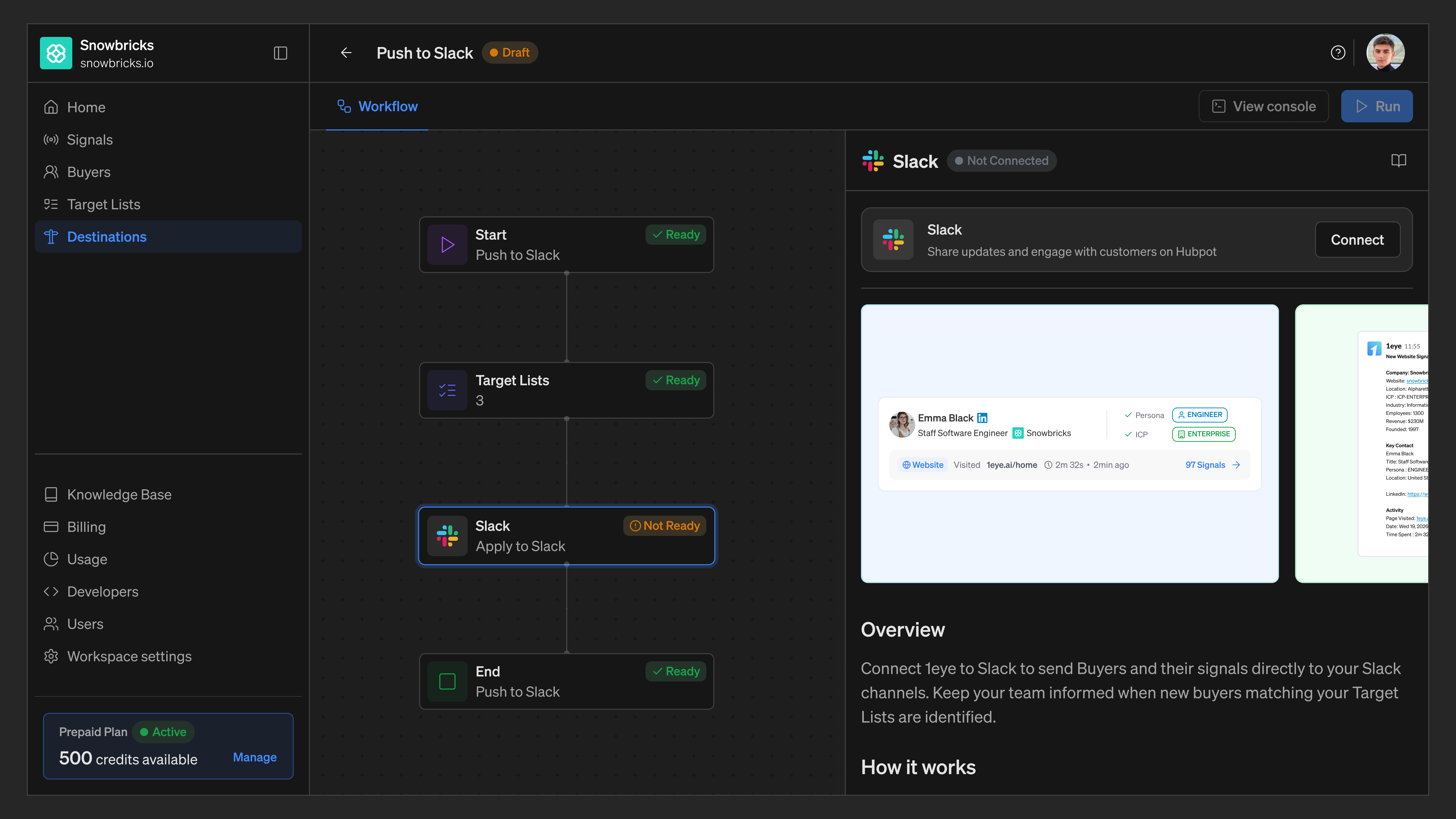
Slack · Not Connected [Connect]Select Connect. Step 2: Confirm the connection in 1eyeᴬᴵ
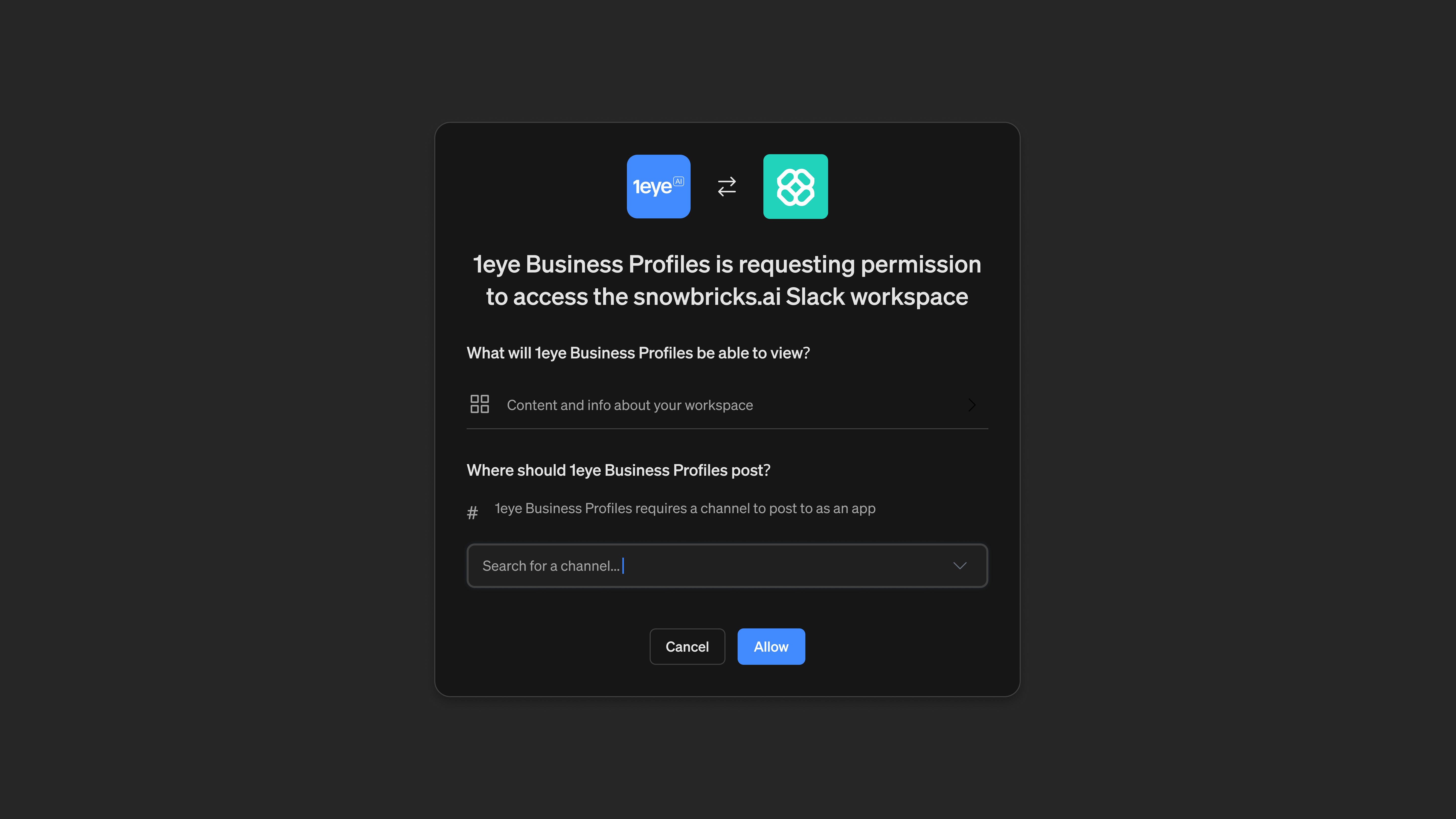
Allow 1eyeᴬᴵ to access your Slack workspace? Link Slack to post signal alerts to a channel your team follows.Select Yes, continue. Step 3: Continue to Slack Opens a Slack-hosted authorization screen in a new window. Select Log In if you already have an account. Step 4: Log in to Slack Enter your Slack credentials, or continue with SSO, then select Log In. This is Slack’s own secure login screen — your credentials are entered directly with Slack and never seen by 1eyeᴬᴵ. Step 5: Choose your Slack workspace, if prompted If you have access to more than one Slack workspace, choose the one that matches your 1eyeᴬᴵ workspace. Step 6: Review and allow access
Configure the destination
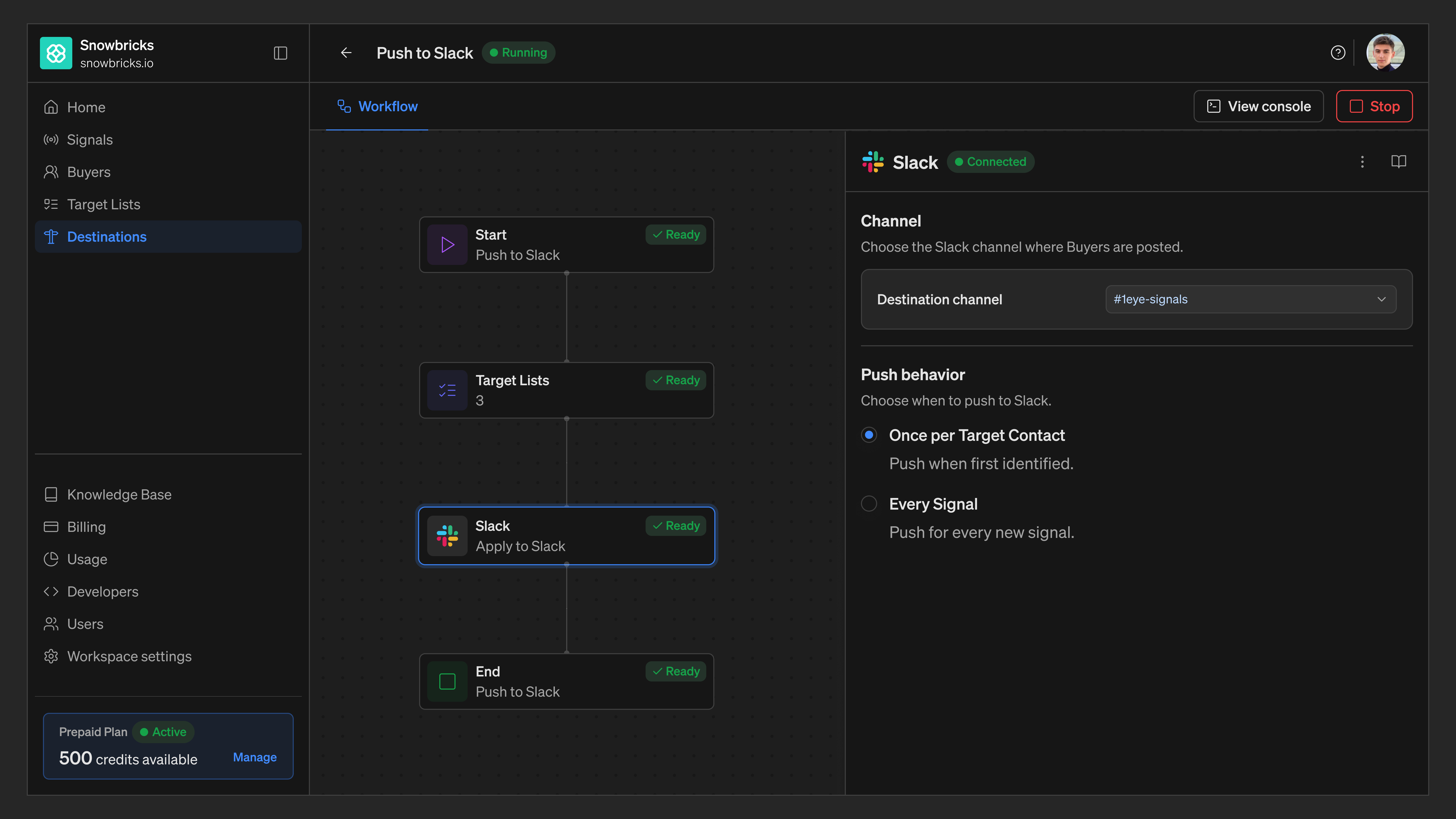
Channel Select the Slack channel to post to. Only one channel can be selected per Destination node.
Push behavior
Choose when 1eyeᴬᴵ should post to the channel:
Select Save Destination once your channel and push behavior are set.
Monitor pushed records
From the Console, filter Slack pushes by All / Pushed / Pending / Failed. Select a contact to see the exact message posted to Slack.Disconnect Slack
- Open the workflow and select the Destination node
- Select the menu next to the Connected status
- Select Disconnect
Best practices
Connect with an account that has the right permissions Use a Slack login with admin or app-installation rights, so the connection doesn’t get blocked by a permissions gap. Pick a channel your team actually watches A destination only helps if the right people see it — choose a channel your GTM team is already in. Match push behavior to channel volume Use Once per Buyer for a low-noise channel, or Every Signal for a channel dedicated to real-time activity. Re-authenticate if the connection breaks If Slack revokes access (workspace changes, admin policy, expired token), reconnect from the Destination node.Troubleshooting
FAQ
Does 1eyeᴬᴵ see my Slack password?
Does 1eyeᴬᴵ see my Slack password?
No. Slack login happens on Slack’s own hosted page. 1eyeᴬᴵ never sees your username or password — only the access token Slack issues after you approve the connection.
What happens if I disconnect Slack?
What happens if I disconnect Slack?
Workflows using Slack as a destination stop posting until you reconnect. Messages already posted to Slack remain there.
Can I push to more than one channel?
Can I push to more than one channel?
Each Destination node posts to a single channel. To post to multiple channels, add a separate Destination node for each one.